NordPass vs Bitwarden 2026: Switching Guide, Both Ways
· 9 min read
Disclosure: YourSolopreneurKit.com earns commissions from affiliate links at no extra cost to you. NordPass is an affiliate partner. Bitwarden is not.
How we tested: We tested both password managers hands-on in one session on October 10, 2026, in their web vaults. Both accounts were on business trials, not free plans: NordPass showed "Enterprise trial" and Bitwarden showed an Enterprise subscription in trial. We imported the same five test logins into each, opened the security reports, and looked for the export option. We did not install either browser extension, so autofill is not covered. Personal plan prices and limits come from Bitwarden's pricing page and from published reviews of NordPass, checked the same day.
This is a guide for people who already use one of these two and are thinking about moving to the other. Both are safe choices. They store your passwords encrypted, and neither company can read your vault. The decision comes down to how your passwords get in, how they get out, and what you pay each year. We ran the move in both directions as far as a browser allows and wrote down what happened.
The Short Answer
- Move to NordPass if you want the import to hold your hand and a health check that speaks up. Its import showed us every login for review before saving, and its Password Health screen flagged two of our five test passwords as weak.
- Move to Bitwarden if price and exit rights come first. Premium is listed at $19.80 a year, the free plan covers unlimited devices, and the web vault exports in four formats.
- Stay where you are if your current manager works and you have no complaint. A password manager you use beats a better one you have not finished setting up.
NordPass vs Bitwarden for Switchers
| What matters when you switch | NordPass | Bitwarden |
|---|---|---|
| Import in the web vault | Three guided paths: browser, password manager, spreadsheet | One form with a long list of file formats, including "Nordpass (csv)" |
| Review before saving | Yes, a table with a checkbox per login | No, a summary after import |
| Our 5-login import | Worked, under 1 minute | Worked, about 1 minute |
| Weak-password check on the same 5 logins | Flagged 2 | Flagged 0 |
| Export from the web vault | Not found in web Settings | .json, .csv, encrypted .json, .zip with attachments |
| Free plan devices | One device signed in at a time (reported) | Unlimited devices (pricing page) |
| Personal paid plan | About $1.30 to $2 a month on long terms (reported) | $19.80 a year (pricing page) |
| Open source | No | Yes |
| Tested hands-on? | Yes, Enterprise trial, web vault | Yes, Enterprise trial, web vault |
"Reported" marks NordPass figures we took from published reviews, because NordPass's plans page blocked our automated check. Confirm them on NordPass's site before you buy.
Want this table on one page? Get the NordPass vs Bitwarden switching cheat sheet, with the migration steps for both directions. Free.
No spam. Unsubscribe anytime. Privacy policy.
Moving Passwords Into NordPass: What We Saw
An empty NordPass vault opens on a screen titled "Create your first item". Three import cards sit at the top: Import from browser, Import from password manager, Import from spreadsheet. Below them are buttons to add a password, a secure note, a credit card or contact info by hand.
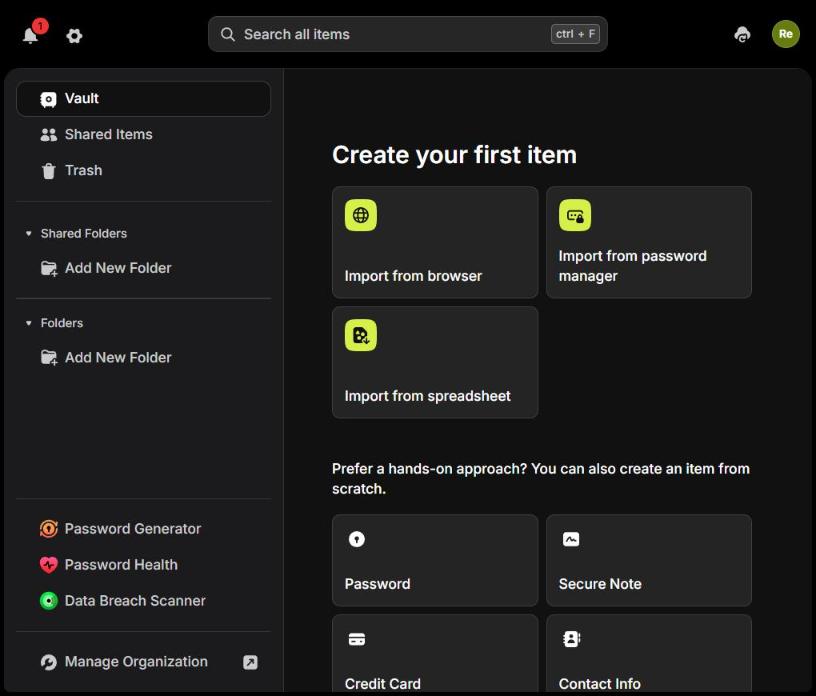
We chose the spreadsheet path. NordPass showed four numbered steps: download its CSV template, fill it in, upload the file, then delete the file from your computer. That last line is good advice. An exported password file is plain text.
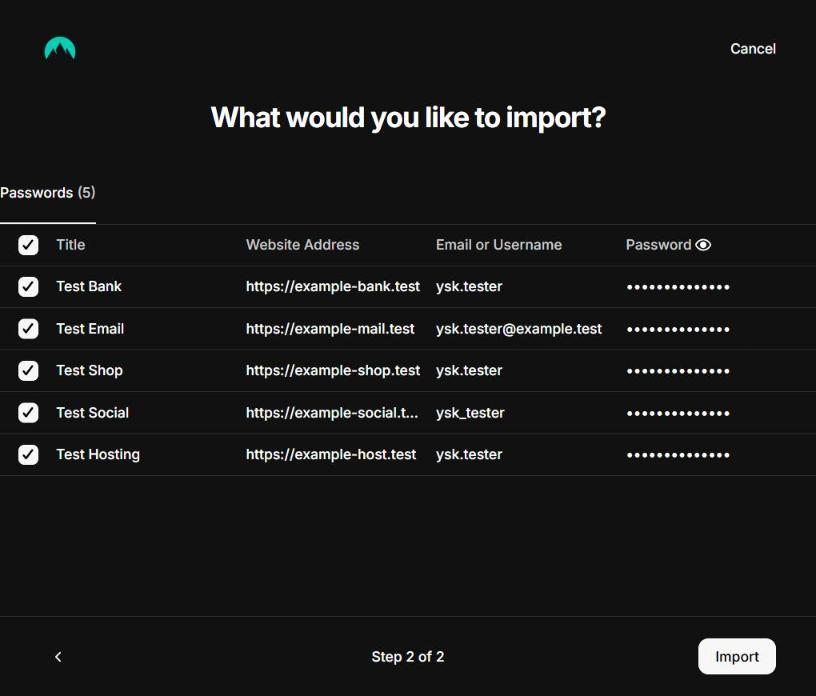
We uploaded a CSV with five test logins and the columns name, url, username, password and note. NordPass read them without any column mapping and showed a review table: title, website, username, and the password as dots with a reveal icon. Each row has a checkbox, so you can leave out junk before it reaches the vault.

One click on Import and all five were in the vault. From the empty vault to five saved logins took under a minute.
Password Health spoke up at once
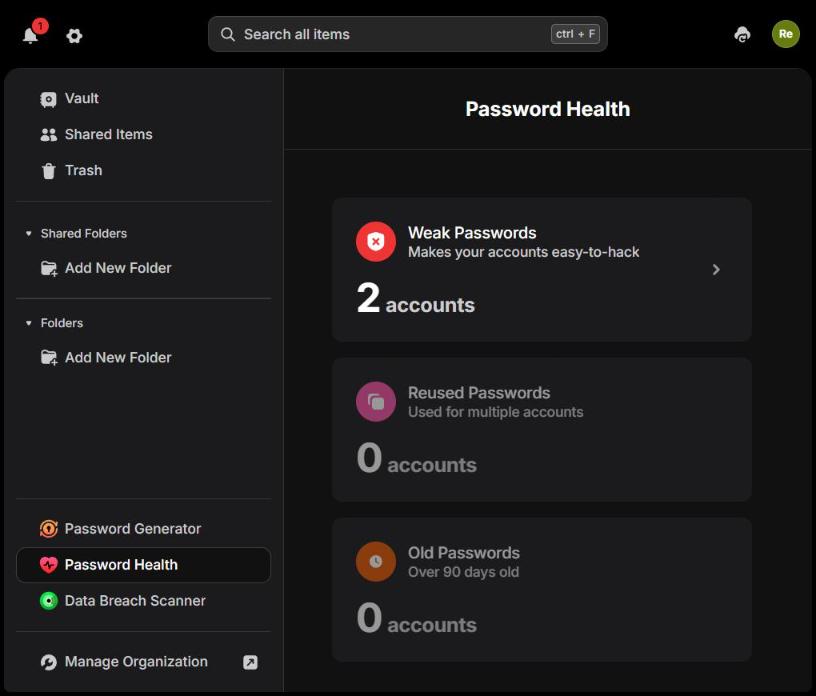
We opened Password Health from the sidebar. It reported 2 weak passwords, 0 reused and 0 older than 90 days. A Data Breach Scanner sits next to it. We did not run the scanner, since our test logins were invented.
Friction in NordPass
- We could not find an export in the web vault. The web Settings page lists "Import items" and no export. Bitwarden's own import instructions say NordPass has an "Export items" option under Import and Export in Settings, so it likely lives in the desktop app. If you plan to leave NordPass one day, check that you can reach the export on your devices.
- The vault locks after 15 minutes idle by default and asks for the master password again. That is a sound default and a small interruption.
- Our account was a trial. Settings showed "Enterprise trial" with an expiry date, so we hit no paywalls. Published reviews report that the free personal plan keeps you signed in on one device at a time.
Moving Passwords Into Bitwarden: What We Saw
Bitwarden's new vault opens with a three-step checklist: create your account, import your passwords, install the browser extension. "Import passwords" leads to a single form under Tools.
The form asks for a destination vault, an optional folder, a file format and the file. The format list is long. We typed "NordPass" and it offered "Nordpass (csv)". Choosing it revealed a blue box with the export steps for NordPass, written out.
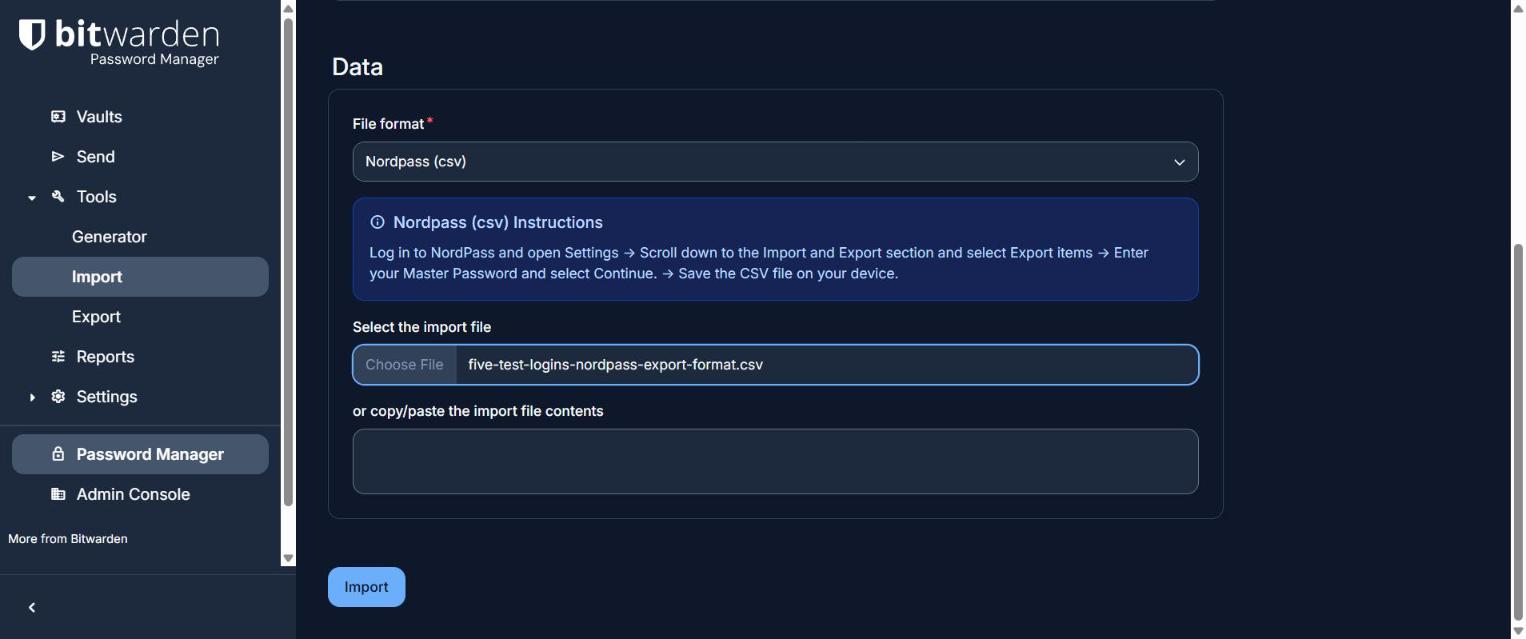
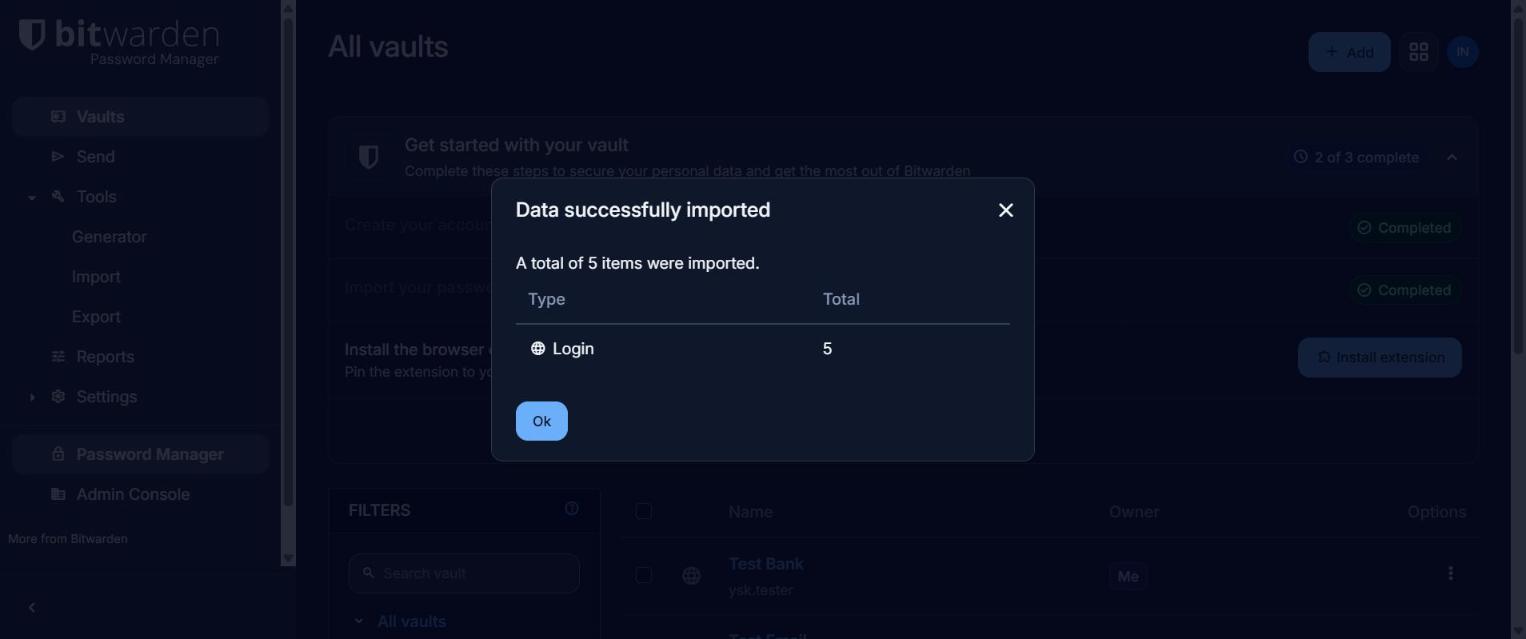
We uploaded the same five logins in NordPass's export column layout and clicked Import. Bitwarden answered with "Data successfully imported. A total of 5 items were imported", broken down by type. There was no review step before saving. If your export has clutter, clean it in the vault afterwards.
The reports were quieter
Bitwarden's Reports page offers exposed passwords, reused passwords, weak passwords, unsecure websites, inactive two-step login and data breach. We opened Weak passwords. It said: "Good news. No items in your vault have weak passwords."
These were the same five passwords NordPass had scored 2 weak. The two tools draw the line in different places. Neither is wrong, and it tells you something: after a switch, expect your "weak" list to change, and do not read a clean report as proof that every password is strong.
Bitwarden's pricing page lists vault health reports under its paid plans. Our trial account had them. Plan for Premium at $19.80 a year if you want them on a personal account.
Friction in Bitwarden
- You must know your export format. The import form is one page with a dropdown of formats. It is fast when you know the source, and a little bare if you do not.
- No preview before import.
- The interface is denser. Tools, Reports, Settings, an Admin Console and a Secrets Manager link share the sidebar. NordPass shows less at once.
Leaving Bitwarden is easy
Tools has an Export page in the web vault with four formats: .json, .csv, encrypted .json and a .zip with attachments. We opened the page and did not run an export. For a switcher this is the strongest point in Bitwarden's favor. You can take everything with you from any browser.
How to Switch From Bitwarden to NordPass
- In Bitwarden's web vault, open Tools, then Export. Choose .csv. Bitwarden will ask for your master password.
- In NordPass, choose "Import from password manager" on the empty vault, or Settings then Import items. We tested the spreadsheet path, which accepted a CSV with name, url, username, password and note columns. We did not test the Bitwarden-specific path.
- Review the table and untick anything you do not want.
- Open Password Health and fix what it flags, weakest first.
- Delete the CSV file and empty your trash. It holds every password in plain text.
- Install the NordPass extension and apps, sign in, and use both managers side by side for a week before you close the old account.
How to Switch From NordPass to Bitwarden
- Export from NordPass. Bitwarden's instructions say: Settings, then the Import and Export section, then Export items, then your master password. We did not find that option in the web vault, so use the desktop app.
- In Bitwarden, open Tools, then Import. Pick "Nordpass (csv)" as the format and upload the file. Our five logins arrived in about a minute.
- Check the import summary against the number of items you had.
- Delete the CSV file.
- Run the Reports if your plan has them, and install the extension.
What It Costs After the Switch
Bitwarden: the pricing page lists Free with unlimited devices and unlimited passwords, Premium at $1.65 a month billed as $19.80 a year, and Families at $47.88 a year for up to six people.
NordPass: published reviews put Premium at roughly $1.30 to $2 a month on one- and two-year plans, billed up front, with a free plan limited to one signed-in device at a time and a 30-day Premium trial. We could not load NordPass's plans page to confirm the current figures.
On price alone Bitwarden wins for one person, and its free plan is the more usable of the two. NordPass costs a few dollars more per year and gives you the guided import and a louder health check. For a solopreneur who stores client logins, the question is which one you will keep tidy.
Verdict
We moved the same five logins into both in about a minute each. NordPass made the move feel safer: it showed every login before saving and flagged two weak passwords right after. Bitwarden made the move feel freer: a named import format with written steps, four export formats in the browser, and a $19.80 yearly price. If you are leaving Bitwarden because it feels like a tool built for engineers, NordPass is the easier home. If you are leaving NordPass over cost, or you want to know you can get your data out from any browser, Bitwarden is the better move.
Related: our NordPass review, the best password managers for solopreneurs and the two-factor authentication guide.
Frequently Asked Questions
Is it easy to switch from Bitwarden to NordPass?
Yes. Export a .csv from Bitwarden's Tools menu and import it in NordPass. In our test NordPass imported a five-login CSV in under a minute and showed each login for review first.
Can Bitwarden import from NordPass?
Yes. Bitwarden's import form has a "Nordpass (csv)" format with export instructions. Our five test logins imported in about a minute.
Which is cheaper, NordPass or Bitwarden?
Bitwarden. Its pricing page lists Premium at $19.80 a year and a free plan with unlimited devices. Reviews report NordPass Premium at roughly $1.30 to $2 a month on long-term plans.
Why did NordPass flag weak passwords that Bitwarden did not?
The two tools score strength differently. On the same five test passwords, NordPass flagged two as weak and Bitwarden's weak-password report flagged none.
Did you test the free plans?
No. Both accounts were on Enterprise trials on October 10, 2026, and we tested the web vaults only, without browser extensions. Free-plan limits in this article come from pricing pages and published reviews.
About the Author
The Your SoloPreneur Kit Team — Honest tool reviews, home office guides, and actionable strategies for solopreneurs. Built by a 30-year operations veteran who managed teams across Panama, Central America, and the Caribbean.
Subscribe to The Solopreneur Edge
Get weekly tool reviews, productivity tips, and business strategies delivered to your inbox. Join our growing community of solopreneurs.
Subscribe to Newsletter